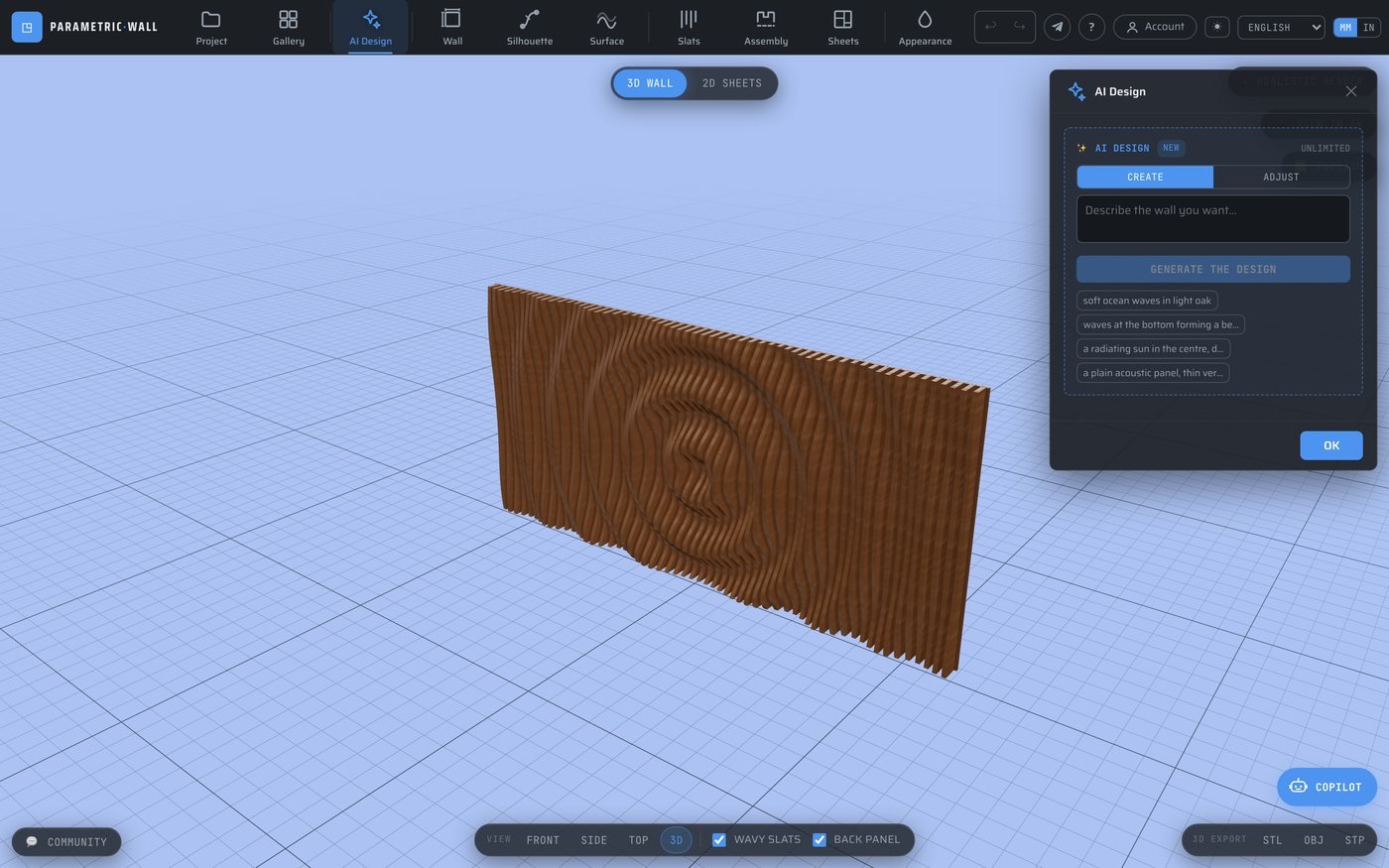
Design a parametric wall by describing it in plain language (AI generator)
Designing a parametric slat or wave wall used to mean learning a whole panel of sliders: amplitude, frequency, falloff, blend modes, slat spacing. Parametric Wall Studio now has an AI design generator that removes that barrier entirely — you describe the wall you want in plain language, in any of the studio's 14 languages, and it sets every parameter for you. This article shows what it does, how to get good results, and where its boundaries are.
From a sentence to a full design
Open the studio and click the ✨ AI Design tool in the top bar. Type something like "soft ocean waves in light oak", "a radiating sun in the centre, dark wood", or "a plain acoustic panel with thin vertical slats". In a few seconds the AI sets the dimensions, the wood colour, the relief layers and how they blend, the slat direction and spacing, and — if you asked for it — the acoustic perforation. The live 3D wall updates instantly.
The examples under the box are there to show the range: descriptive scenes ("waves at the bottom forming a bench you can sit on"), material cues ("dark walnut"), and functional intent ("acoustic panel for an office") all work. It answers in the language of your request, so a French prompt gets a French explanation of what it chose.
The AI only sets parameters — the engine does the rest
This is the part that matters for anyone who will actually cut the result. The AI never writes geometry, cut sheets or G-code. It only produces a set of bounded, validated parameters, which the same deterministic engine that was already there turns into the 3D surface, the nested cut sheets and the toolpaths. Nothing a language model writes ever reaches your machine file.
Every value it returns is checked against machinable limits: a wall can't be 40 metres wide, a slat can't be narrower than your cutter, an unknown pattern type is dropped rather than passed through. If the AI proposes something out of range, the studio corrects it and tells you what it changed. You get creative speed without giving up the reliability of a hand-written CAM engine.
Getting good results
Be concrete about the feeling and the material, not the numbers: "calm, shallow relief, light wood" gives a better result than trying to name an amplitude. Mention placement when it matters — "concentrated at the bottom", "radiating from the centre" — because the AI understands those spatial cues and applies the right falloff.
Keep the first prompt simple and refine from there. One or two ideas per sentence beats a paragraph of contradictory requirements. Once you have a base you like, switch to the copilot to fine-tune it conversationally rather than regenerating from scratch.
Free to try, then Pro
Designing by hand stays free and unlimited, as it always has — the sliders, the 3D preview, the machining simulator and the 30 templates cost nothing and need no account. The AI designer includes 20 free generations; after that it is part of the Pro plan ($9.99/month), because every generation has a real cost on the model provider's side.
If a written description is not the right tool for your shape — a face, a logo, a specific figure — the next article explains why, and which feature to use instead.