A real machining simulator and a pro G-code workshop, right in your browser
Exporting G-code is one thing. Trusting it enough to press the green button on a machine is another. This update closes that gap: the G-code dialog became a full-screen workshop with real CAM options and a multi-view preview, and a built-in simulator now replays the exact .nc file you are about to download — animated tool, real feed rates, timeline, and a 3D view you can orbit. Here is what changed.
The G-code workshop: radius compensation and real CAM options
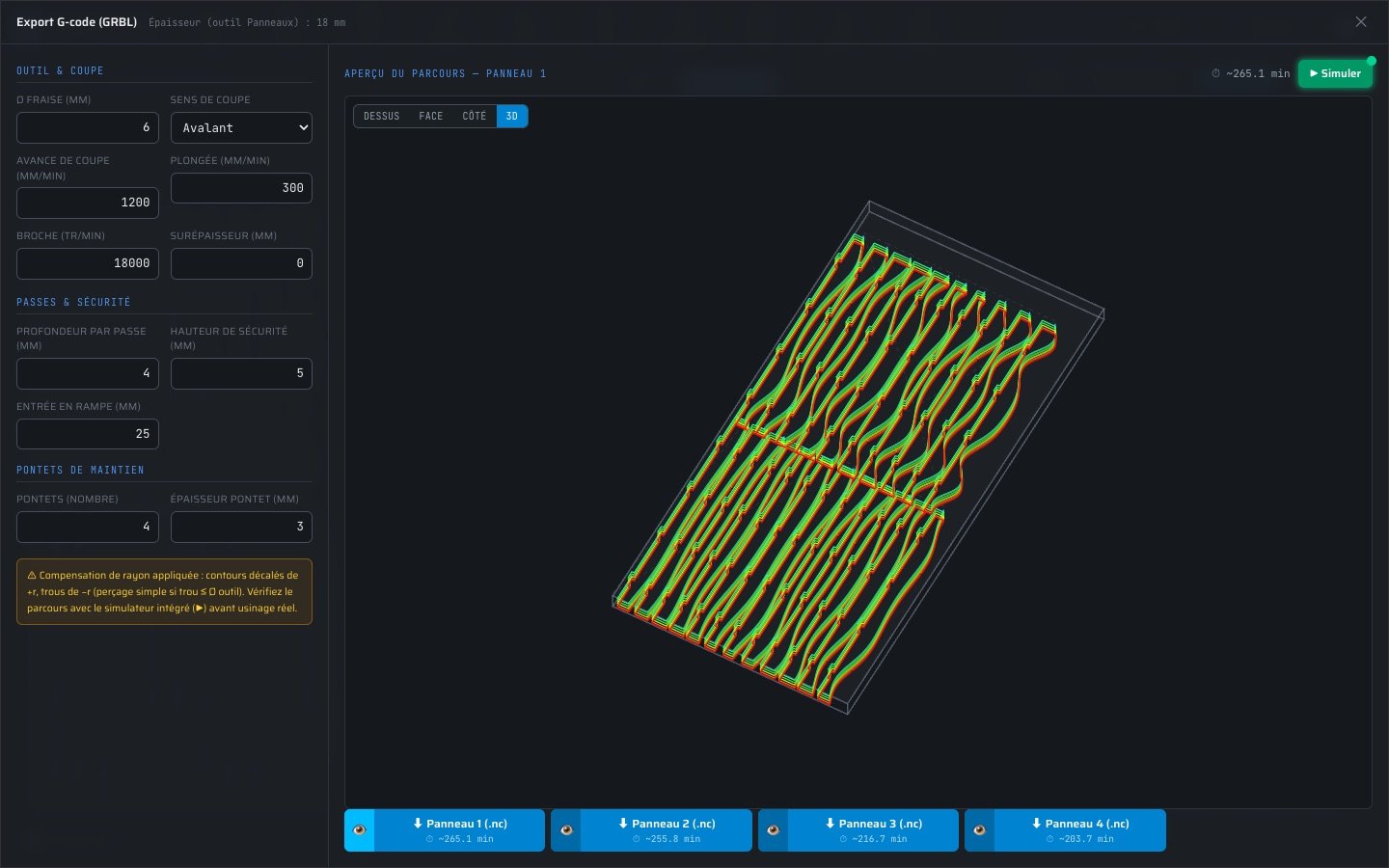
The old dialog followed the tool centerline; the new generator applies proper radius compensation. Outlines are offset outward by the bit radius, holes inward, and any hole smaller than the bit becomes a plain drilling cycle at its centre. Your parts come out at the designed size, not a bit-radius too small.
Around that core you get the options that matter for slat walls, and only those: climb or conventional cutting (with the loop direction set accordingly), stock allowance for a finishing pass, ramp entry along the contour instead of a straight plunge, and holding tabs on the final pass so parts never come loose mid-cut.
The dialog itself is now a full-screen workshop: parameters in a sidebar, and a large toolpath preview you can inspect in four views — top, front, side, and an orbital 3D — with every pass colored by depth. Each download button shows the estimated machining time for that sheet, computed from your actual feeds.
The simulator: your .nc file, replayed exactly
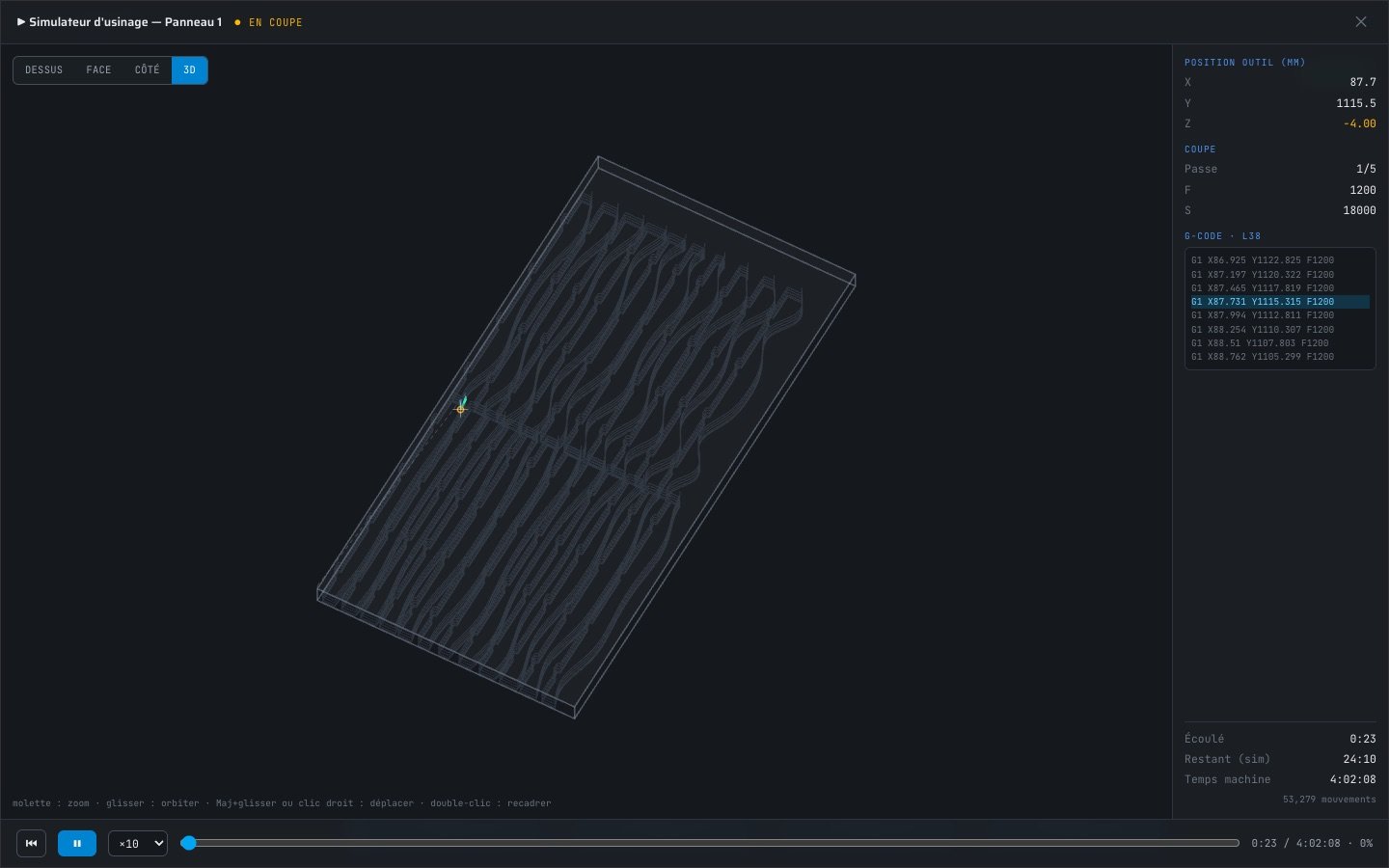
The ▶ Simulate button opens a full-screen simulator in the spirit of NC Viewer, with one crucial difference: it does not approximate. It parses the exact G-code file you are about to download — every G0, G1, feed rate, dwell and spindle command — and replays it on a timeline.
The tool marker moves at the programmed feeds (cuts at your cutting feed, rapids at rapid speed), the machined trace builds up colored by depth from surface blue to final-pass red, and rapids draw as dashed lines. Watch the ramp entries, see each pass stack up, and spot the holding tabs appear on the last pass.
A side panel tracks everything live: X/Y/Z position, current pass number, feed and spindle values, and the current G-code line highlighted in context. Play or pause with the spacebar, run at ×1 to ×100, scrub anywhere on the timeline — and read the total machine time, computed from the program itself.
Four views, one habit: simulate before you cut
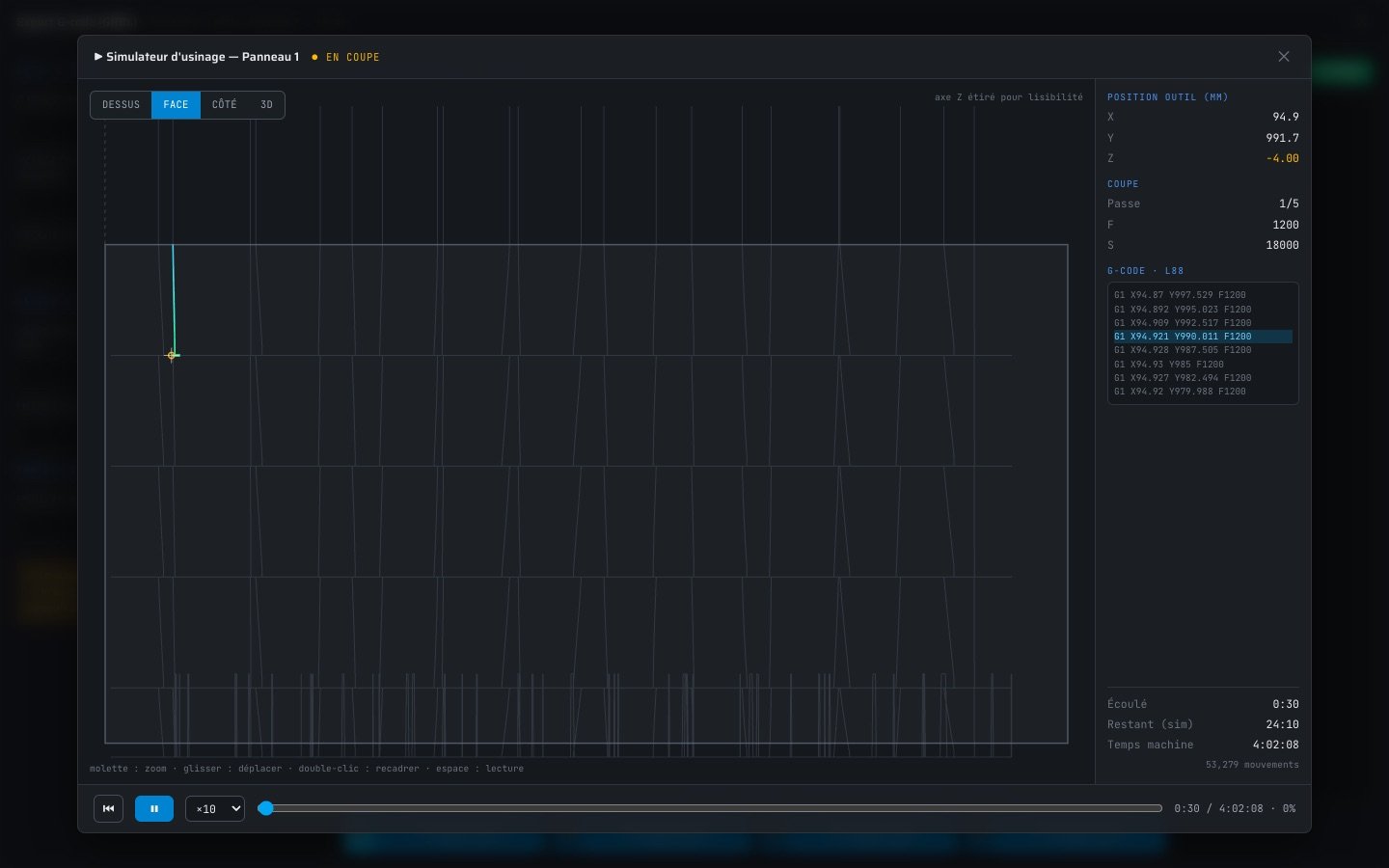
The top view is the classic layout check. The front and side section views stretch the Z axis so an 18 mm panel becomes readable: you can literally count the passes, check the ramp angle and verify tab thickness. The 3D view orbits with a drag, pans with Shift+drag or right-drag, and zooms with the wheel — the raw sheet is drawn as a solid so you always know where the material is.
Our suggested workflow: pick the sheet with the eye button, glance at the preview and the time estimate, hit ▶ Simulate and let it run at ×100 once. Thirty seconds of simulation against hours of machining — and any surprise (wrong depth per pass, missing tabs, a feed typo) shows up on screen instead of in your material.
Everything runs in the browser, on the exact file the machine will receive. No CAM roundtrip, no separate simulator, no export-import dance.
Read next
Tools & guides
Ready to try it?
Open the studio and try the simulator →