How to generate CNC G-code without CAM software (GRBL and Mach3)
The usual CNC workflow has two separate steps: design your part in CAD, then generate toolpaths in a CAM program (Fusion 360, VCarve, Aspire, Kiri:Moto) and post-process to G-code for your controller. For profile cutting a slat wall, that whole CAM chain is now optional. This guide explains what G-code is, how radius compensation and holding tabs work, and how to generate ready-to-run GRBL and Mach3 G-code directly in the browser — no separate CAM software needed.
What is G-code, and what does CAM normally do?
G-code is the plain-text language CNC machines speak: lines like G0 (rapid move), G1 (cut move), F (feed rate) and M3 (spindle on) that tell the machine exactly where to move and how fast. GRBL and Mach3 are two of the most common controllers that read it.
CAM (Computer-Aided Manufacturing) software is what usually turns your drawing into that G-code: you import a DXF or SVG, define the tool, cut depths and strategy, then post-process to a .nc file. It is powerful but adds a second tool, a learning curve and an export-import round trip.
Why you can skip CAM for a slat wall
A parametric wall generator already knows the exact geometry of every slat, hole and mortise — it created them. So instead of exporting vectors and re-importing them into CAM, it can compute the toolpaths itself and write the G-code directly. For 2.5D profile cutting (which is exactly what slat walls, fluted panels and acoustic panels are), this produces the same result as a CAM program, with far less friction.
The catch is that this works best for the specific models the tool understands. It is not a general-purpose CAM you would use for arbitrary parts — it is a focused, sane G-code generator for parametric walls, which is why it can be fully automatic.
Radius compensation: getting parts to the right size
A cutting bit has a real diameter, so the tool centre must travel offset from the part edge — outward on outlines, inward on holes — by the bit radius. This is cutter radius compensation. Without it, every part comes out a bit-radius too small. Good G-code applies it automatically, and drills small holes (smaller than the bit) as a single plunge at the centre.
Parametric Wall Studio computes this geometrically from the tool diameter you enter, so outlines are offset by +r and holes by -r, and your slats come out at exactly the designed size — no manual offsetting, no G41/G42 gambling on your controller.
Tabs, ramp entry and cut direction
A few options make the difference between clean parts and a scrapped sheet. Holding tabs are small uncut bridges left on the final pass so slats do not come loose and get thrown. Ramp entry descends gradually along the contour instead of plunging straight down, which is gentler on the bit. Cut direction (climb vs conventional) sets the loop direction for the best edge finish, and a stock allowance leaves material for a clean finishing pass.
These are the settings a professional would configure in CAM — here they are just a handful of clearly labelled fields, tuned for slat walls, that write correct G-code for every sheet.
Always simulate before you cut
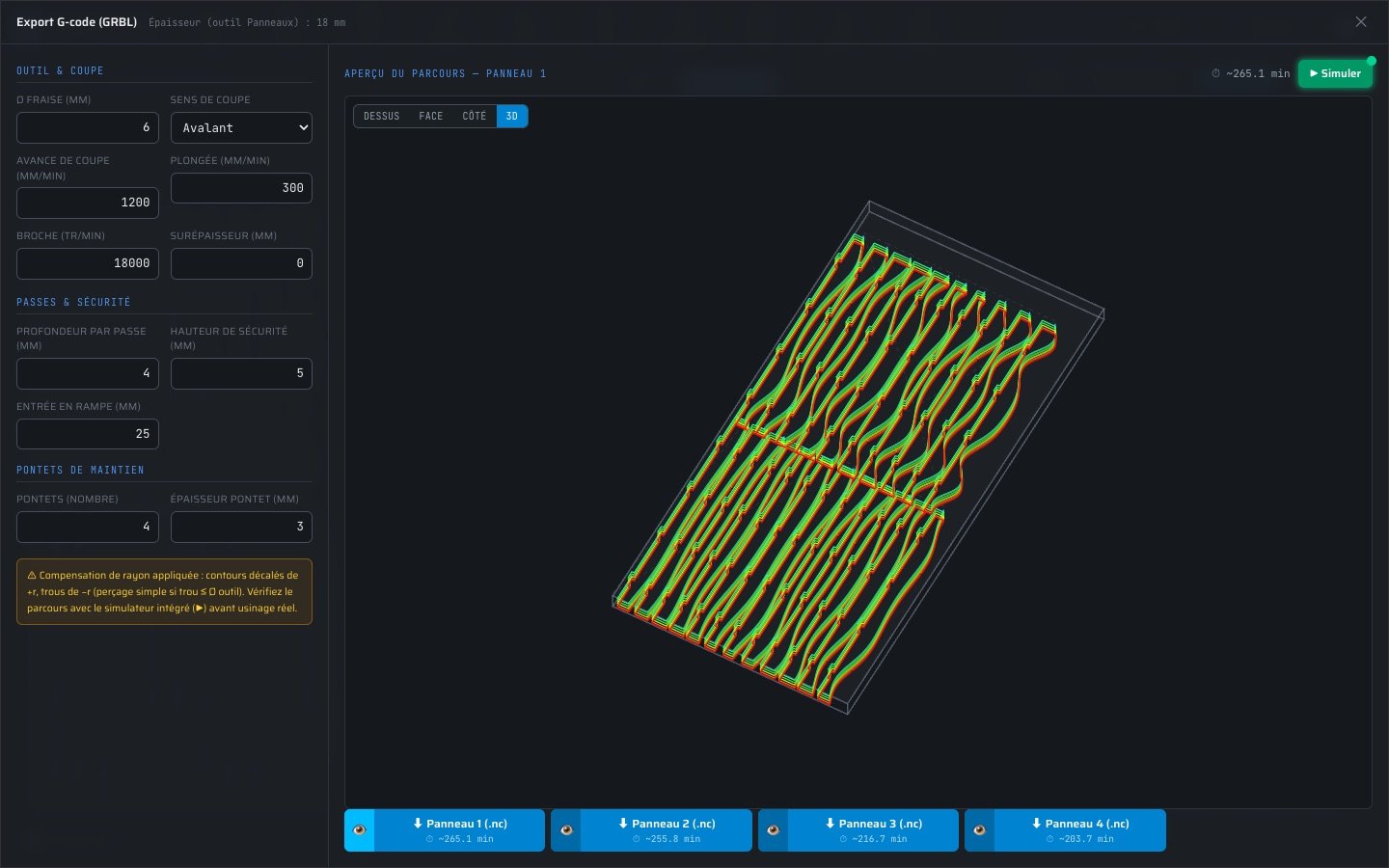
The golden rule of CNC is to verify the toolpath before running it on real material. A built-in machining simulator replays the exact .nc file you are about to download — animated tool at the real feed rates, passes coloured by depth, holding tabs appearing on the last pass, live X/Y/Z readout and the current G-code line. Thirty seconds of simulation can save hours of machining and a ruined sheet.
Because the simulator interprets the same file the machine will receive, what you see is what you get. You can catch a wrong depth per pass, a missing tab or a feed typo on screen instead of in your material.
From design straight to a .nc file
The full browser workflow: design your slat or wave wall, set your material, tool diameter, pass depth, feeds, tabs and cut direction (each G-code export setting explained), preview the toolpath in top, front, side and 3D views, then download one ready-to-run .nc file per sheet for GRBL or Mach3. No Fusion 360 install, no VCarve licence, no Kiri:Moto round trip.
When do you still need full CAM? For complex 3D contouring, multi-tool jobs or non-wall parts, a dedicated CAM package is still the right tool. But to take a parametric slat, wave or acoustic wall from idea to machine, generating G-code directly in the browser is faster, simpler and free.
Read next
Tools & guides
Ready to try it?
Generate G-code in the browser →